
Openshift+Jenkins+zalenium+HtmlReporter实现自动化测试
上篇介绍了如果在openshift上部署zalenium及python对应用功能进行测试的方法。
该篇介绍如何通过Jenkins的Slave容器配合上篇中的zalenium实现自动化功能测试,并生成测试报告。虽然只是一个小例子,但是麻雀虽小,五脏俱全。同时所有的操作及工具都建立在Openshift上。
下图为各工具之间的关系: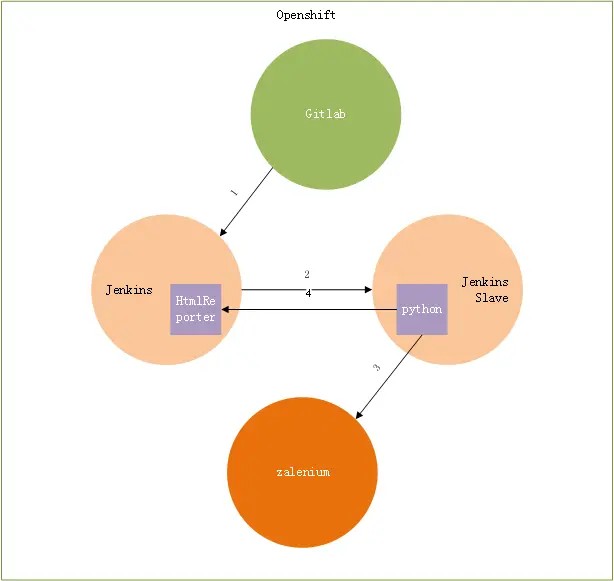
###具体操作:
- 启动Jenkins需要添加环境变量
JENKINS_JAVA_OVERRIDES=>-Dhudson.model.DirectoryBrowserSupport.CSP=
该环境变量使得HtmlReporter页面展示正常
- 启动Jenkins需要添加环境变量
- Jenkins系统管理->系统设置中创建新的Kubernetes Pod Template
基础镜像jenkins-slave-python-centos7:3.10,Dockerfile安装需要的python依赖包
1
2
3
# Dockerfile
FROM informaticsmatters/jenkins-slave-python-centos7
RUN pip install selenium -i https://pypi.douban.com/simple/- Jenkins系统管理->系统设置中创建新的Kubernetes Pod Template
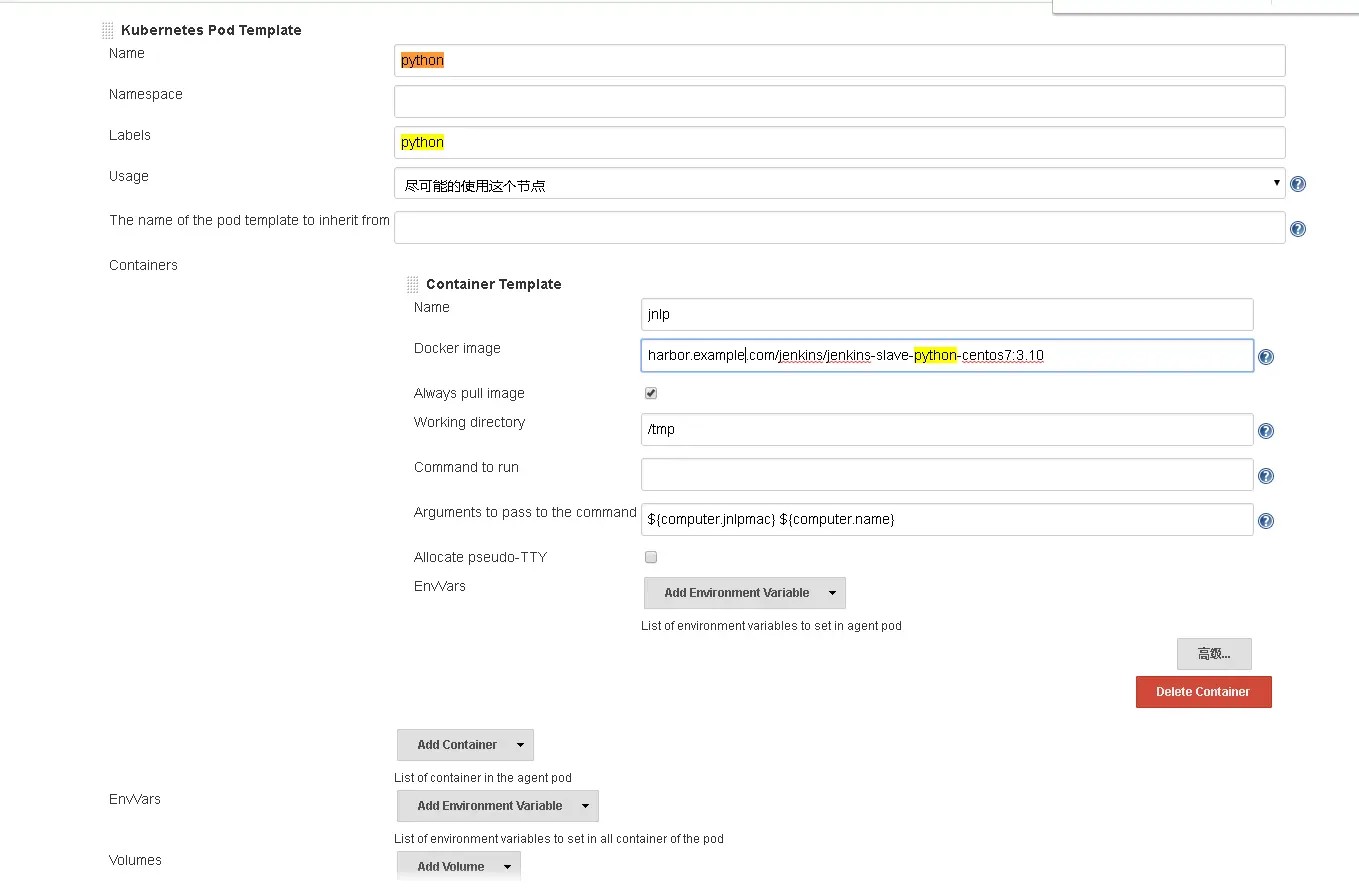
- 代码中添加自动化测试脚本
1 | # -*- coding: utf-8 -*- |
- Jenkins Job中完成部署后,执行测试脚本
1 | cd tests |
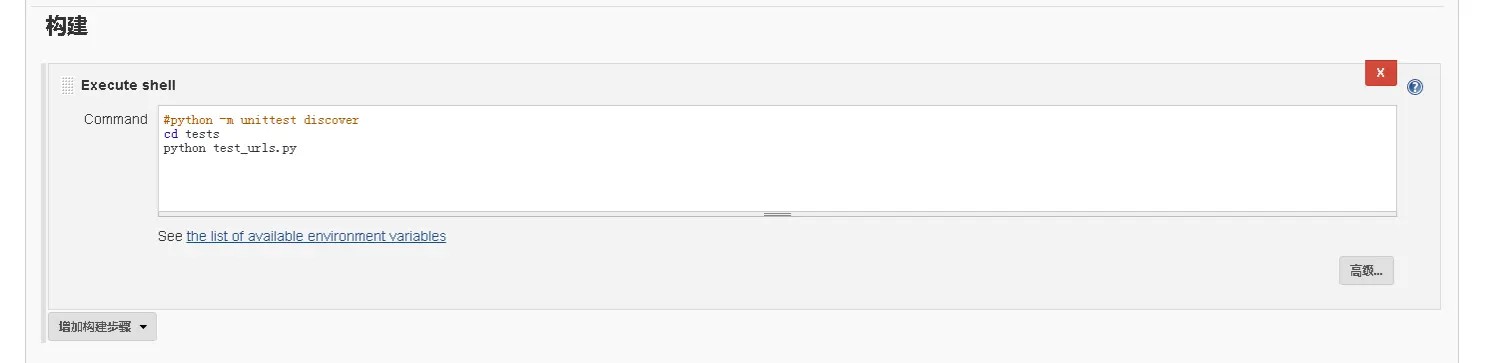
- 导出自动测试报表
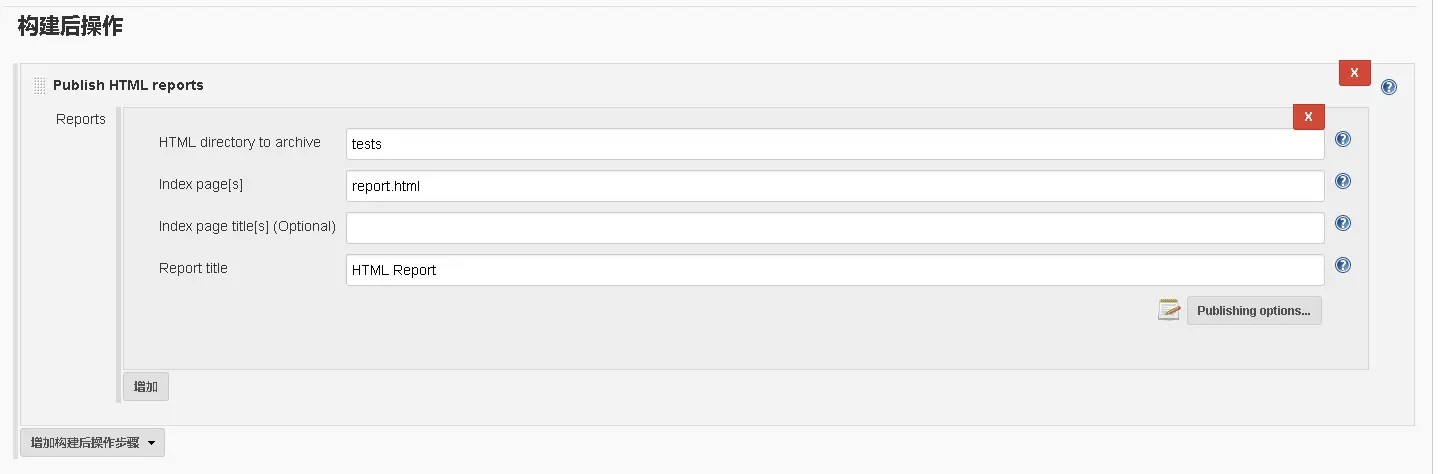
- 最后结果展示

本博客所有文章除特别声明外,均采用 CC BY-NC-SA 4.0 许可协议。转载请注明来源 Michael Blog!
相关推荐
2020-05-20
Openshift开启Calico-BGP-与-OVS性能PK
Openshift网络方案选择 大家都知道K8S在网络插件选择上有很多种,默认的是Flannel,但是它的性能一般,互联网中使用最多的是Calico BGP,因为它的性能非常好。 而对于Openshift,官方只支持ovs一种网络方案,同时RedHat也表示ovs在Openshift平台上运行是最合适的。但是ovs的网络性能怎样呢?因为ovs方案对数据需要进行加包,解包的过程,性能肯定是会受影响的。同时经过实测,在万兆网络中的损耗近50%,虽然在绝大部分场景下ovs已经够用了,但是但是跟几乎无损耗的Calico BGP比起来还是逊色不少。 很庆幸,Openshift虽然官方不作Calico网络方案的支持,但还是很体贴地把它加入到了Openshift的安装脚本中,从而让大家都能方便地使用Calico网络方案,包括IPIP及BGP方案。 安装步骤 在ansible hosts中设置关闭openshift默认的sdn方案,开启calico方案/etc/ansible/hosts 1234[OSEv3:vars]os_sdn_network_plugi...
2020-05-20
OpenShift支持Calico-BGP-路由反射(RR)模式
一、Calico 是什么calico 是容器网络的一种解决方案,也是当前最流行的方案之一。和其他虚拟网络最大的不同是,它没有采用 overlay 网络做报文的转发,提供了纯 3 层的网络模型。三层通信模型表示每个容器都通过 IP 直接通信,中间通过路由转发找到对方。在这个过程中,容器所在的节点类似于传统的路由器,提供了路由查找的功能。 要想路由工作能够正常,每个虚拟路由器(容器所在的主机节点)必须有某种方法知道整个集群的路由信息,calico 采用的是BGP 路由协议,全称是 Border Gateway Protocol。 除了能用于 docker 这样的容器外,它还能集成到容器集群平台 OpenShift/kubernetes、公有云平台 AWS、GCE 等, 而且也能很容易地集成到 openstack 等 Iaas 平台。 二、Calico网络方式2.1 IPIP模式从字面来理解,就是把一个IP数据包又套在一个IP包里,即把 IP 层封装到 IP 层的一个 tunnel,看起来似乎是浪费,实则不然。它的作用其实基本上就相当于一个基于IP层的网桥!一般来说,普通的...
2020-05-20
OpenShift-如何设置使用Prometheus来监控Router
OpenShift集群中的Router服务作为几乎所有南北流量的入口非常重要,对它的监控有很大的意义,既能够查看流量的变化,及时发现业务的变化,也可以发现异常请求及时发现问题。 红帽对于Router服务其实已经开启了监控指标的服务,但是默认并没有与Prometheus服务对接,需要手动对接,具体对接的操作如下。 获取Router应用的访问用户名与密码 1234$ oc set env dc/router -n default --list | grep STATSSTATS_PASSWORD=Oby3Y2FXs5STATS_PORT=1936STATS_USERNAME=admin 在prometheus项目下创建访问Router指标的密钥 1$ oc create secret generic router-auth --from-literal=user=admin --from-literal=password=Oby3Y2FXs5 -n openshift-monitoring 在openshift-monitoring项目下创建ServiceMonitor ...

2020-05-20
OpenShift-通过Operator-SDK制作Operator
制作Operator过程 下载安装operator-sdk 创建github仓库 operator-sdk创建应用 12345$ operator-sdk new memcached-go-operator --repo=github.com/example-inc/memcached-operator$ # or$ operator-sdk new memcached-ansible-operator --api-version=fcloudy.com/v1alpha1 --kind=Memcached --type=ansible$ # or$ operator-sdk new memcached-helm-operator --api-version=fcloudy.com/v1alpha1 --kind=Memcached --type=helm operator-sdk new默认使用的type为go,必须在$GOPATH目录下创建项目。type为go时项目的目录结构如下:项目的目录结构 type的可选值还可以为:ansible与helm,如果是这两个,则还可以带参数...
2020-05-20
OpenShift使用HostPath挂载本地目录无权限
123456789101112131415161718192021222324252627282930313233apiVersion: v1kind: DeploymentConfigmetadata: name: centos namespace: monitorspec: replicas: 1 template: metadata: labels: busybox: 'true' spec: containers: - args: image: 'centos:v2' imagePullPolicy: IfNotPresent name: busybox securityContext: runAsUser: 1000 runAsGroup: 2000 #该特性在k8s 1.10之后才支持,本环境未支持,参见Support for RunAsGrou...
2020-05-20
Openshift-3scale简单介绍
API经济3scale做了什么?关注指标 支持应用数据 完整用例的数量 用户数量 资金价值 开发速度 部署速度 迁移工作量 已有问题 完整的API管理不仅仅只是创建与发布,还需要配套全方位的运维 创建与发布API 度量和计费 安全 & 认证 API文档Portal 扩展性 & 集中策略 API监控 版本控制 生命周期 配置 & 告警 API测试 3scale架构(可容器化部署) 实验内容github.com/hgueere